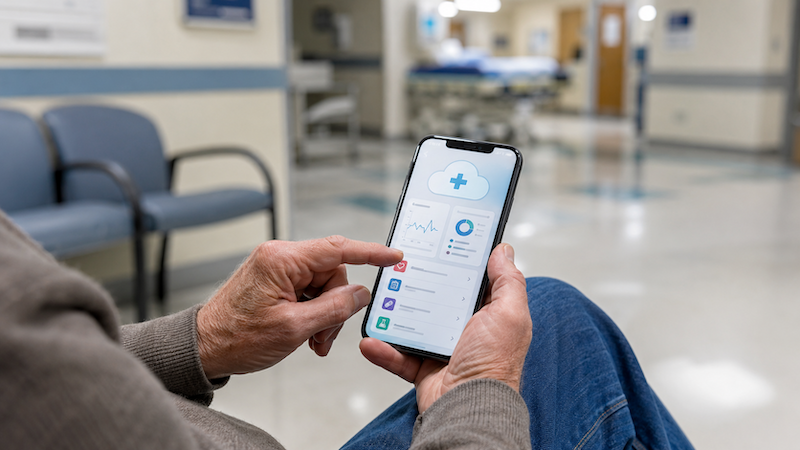
If you experience a medical emergency, having easy access to your medical records can be essential. Using cloud storage for seniors can put the right information at your fingertips.
Whether you’re visiting an unfamiliar ER while traveling, evacuating because of a natural disaster, or seeing a new specialist for the first time, you’ll likely be asked the same important questions:
- What medications do you take?
- What are the dosages?
- Do you have any allergies?
- Who are your physicians?
- Which pharmacy do you use?
- What medical conditions or surgeries have you had?
Many people assume they’ll remember all this emergency medical information – until they’re put on the spot. Unfortunately, stress, illness, or injury can make even simple details hard to remember. Having this information organized and accessible from anywhere can save valuable time and help health care providers make better treatment decisions.
While many people keep printed copies of their medical records at home, paper files aren’t always available when they’re needed most. Fires, floods, hurricanes, or other emergencies can leave important documents behind. Fortunately, cloud storage for seniors makes it easy to securely access your medical information from nearly any smartphone, tablet, or computer with an internet connection. Even if you’re not tech savvy, there are ways you can carry your information with you.
What information should you save?
Gather the information you’ll need before you decide on a storage method. Create one document that includes:
- Full name and date of birth
- Emergency contacts
- Health insurance details
- Information for your primary care physician and specialist contacts. Many health care providers now use digital medical services that allow you to access your information. Include this information and your passwords in your records.
- Preferred pharmacy phone number, address, and name
- Current medications and dosing schedule
- Allergies, including prescription reactions
- Medical diagnoses and conditions
- Past surgeries and hospitalizations
- Immunization record
- Medical devices (pacemakers, insulin pumps, joint replacements, etc.)
- Blood type
- Advance directives or health care power of attorney
Update this document whenever you change medications, health care providers, or pharmacies.
Compare against the Seniors Guide Checklist for Documenting Your Medical History
Why cloud storage makes sense
Cloud storage means storing your files safely on internet-based servers, rather than only on your home computer. Even if your laptop or smartphone is lost or damaged during an emergency, your information is still available.
Most cloud storage services provide:
- Free accounts with sufficient storage for medical documents
- Apps for Android and iPhone smartphones
- Automatic synchronization between multiple devices
- Password protection
- Encryption for secure file transmission
And perhaps most importantly, you can access your records from virtually anywhere by signing in to your account.
Tips on using cloud storage for seniors
- For your cloud storage, use a strong password that you can remember but cyber thieves can’t guess.
- If you’re traveling or displaced by an emergency, use the app on your or a web browser, such as at a public library. After signing in, your files are immediately available.
- If you sign in to a public computer, be sure to sign out afterwards.
- If you don’t have access to a computer, contact a trusted friend or family member to get the information.
Google Drive
Google Drive is among the most beginner-friendly of the cloud storage services. Every Google account comes with 15 GB of free storage, more than enough space for scanned documents and health records. Paid plans currently start at around $7 a month for 30 GB of space, if you need more.
How to use it
- Create a free Google account if you don’t already have one.
- Open Google Drive on your computer and install the Google Drive app on your smartphone.
- Create a folder called “Medical Information.”
- Upload your medical history document and any scanned insurance cards or advance directives.
If you’re traveling or displaced by an emergency, use the Google Drive app on your smartphone or a web browser.
Microsoft OneDrive
If you use a Windows computer, OneDrive may already be installed. A free Microsoft account includes 5 GB of cloud storage, and inexpensive upgrades are available if needed. OneDrive also includes a feature called Personal Vault for extra protection of sensitive documents.
How to use it
- Sign in with your Microsoft account.
- Create a folder labeled “Medical Records.”
- Upload your medication list, physician contacts, insurance cards, and healthcare directives.
- Place especially sensitive documents inside Personal Vault if desired.
Download the OneDrive app on any smartphone or visit onedrive.com from any internet-connected computer. After logging in, your records are available immediately.
Apple iCloud Drive
For people who primarily use an iPhone, iPad, or Mac, iCloud Drive offers seamless integration. Apple provides 5 GB of free storage, with affordable paid plans beginning at around $1 per month for additional storage.
How to use it
- Sign in to your Apple ID.
- Open the Files app.
- Create a folder named “Medical Information.”
- Save your medical history document and scanned records.
You can open the Files app on another Apple device or visit iCloud.com from almost any web browser and sign in with your Apple ID.
Dropbox
Dropbox has been one of the most trusted cloud storage providers for years. Its simple interface makes it especially appealing for people who aren’t particularly comfortable with technology. The free Basic plan provides enough space for essential medical documents, while paid plans are available for users who need more storage.
How to use it
- Create a free Dropbox account.
- Make a folder called “Emergency Medical Information.”
- Upload your medical records and emergency contact list.
- Install the Dropbox app on your smartphone.
Simply log in to your Dropbox account from any phone, tablet, or computer with internet access.
Tips for keeping your information safe
Medical information is private, so it is important to protect it.
- Use a strong and unique password.
- If possible, enable multi-factor authentication.
- Update your medication list after each doctor visit
- Check your information every 6 months.
- Share access only with trusted family members or caregivers, if appropriate.
It helps to have a small card with medical info that you keep in your wallet, along with your emergency contacts, and a note that your complete records are stored in the cloud.
Related: More tips on ensuring safe online experiences
Don’t forget your smartphone
Many smartphones also feature built-in Medical ID capabilities that emergency responders can access when your phone is locked. These features allow you to store emergency contacts, allergies, medications, blood type, and medical conditions. These tools are not a replacement for your full medical records but can add another layer of protection during an emergency.
Peace of mind wherever you go
It takes only an hour or two to organize your medical information using cloud storage for seniors, but the benefits can last for years. Whether you’re traveling cross-country, evacuating during a natural disaster, or just visiting a new doctor, having your health information readily available can reduce stress and improve medical care.
Cloud storage services like Google Drive, Microsoft OneDrive, Apple iCloud Drive and Dropbox make it simple to keep important health records close at hand without lugging around stacks of paperwork. Select the platform that fits the devices you already have, and keep your information up-to-date. This way, you can access your most important medical information when you need it most.