If you haven’t already received an email inviting you to a Zoom meeting, you probably will soon. In this age of social distancing, many groups are choosing to meet virtually, and Zoom is one of the most popular ways to do this. It might be your book club, your volunteer group, or your Sunday school class, but chances are you’re going to be part of a Zoom meeting.
Click here to read this article in Spanish – Click aqui para leer este articulo en español
Zoom is a computer program used to hold online virtual meetings. You can use Zoom on a smartphone, a tablet, a laptop, or a desktop computer (as long as you have a camera, speakers, and a microphone). It uses your computer’s or phone’s camera to show live video of all attendees (if you don’t want to be on camera, that’s fine, too. You can just display your name). Zoom uses your computer’s or phone’s microphone to let you talk to other meeting participants. If you do not have access to a computer, tablet, or smartphone, you can use a phone to dial into a meeting.
This article only covers joining and participating in a Zoom meeting that you’ve been invited to. If you want to know more about more advanced Zoom features like changing your background, raising your hand in a meeting, sharing your screen, and hosting your own meeting go to Zoom’s Support Center.
DOWNLOAD ZOOM
Zoom is a program that runs on your computer, phone, or tablet. You can download this program from the Zoom website. The free version of Zoom should meet all of your needs. NOTE: You are not required to download Zoom when you are invited to a Zoom meeting (though it is best practice). You can select “Join From Browser” after opening the link to the meeting in the email.
If you’ve received an email invitation to a Zoom meeting, click the link that says, “Join Zoom Meeting.” If this is the first time you’ve used Zoom, this link will take you to a website where you can download the Zoom program or app, depending on what device you’re using.
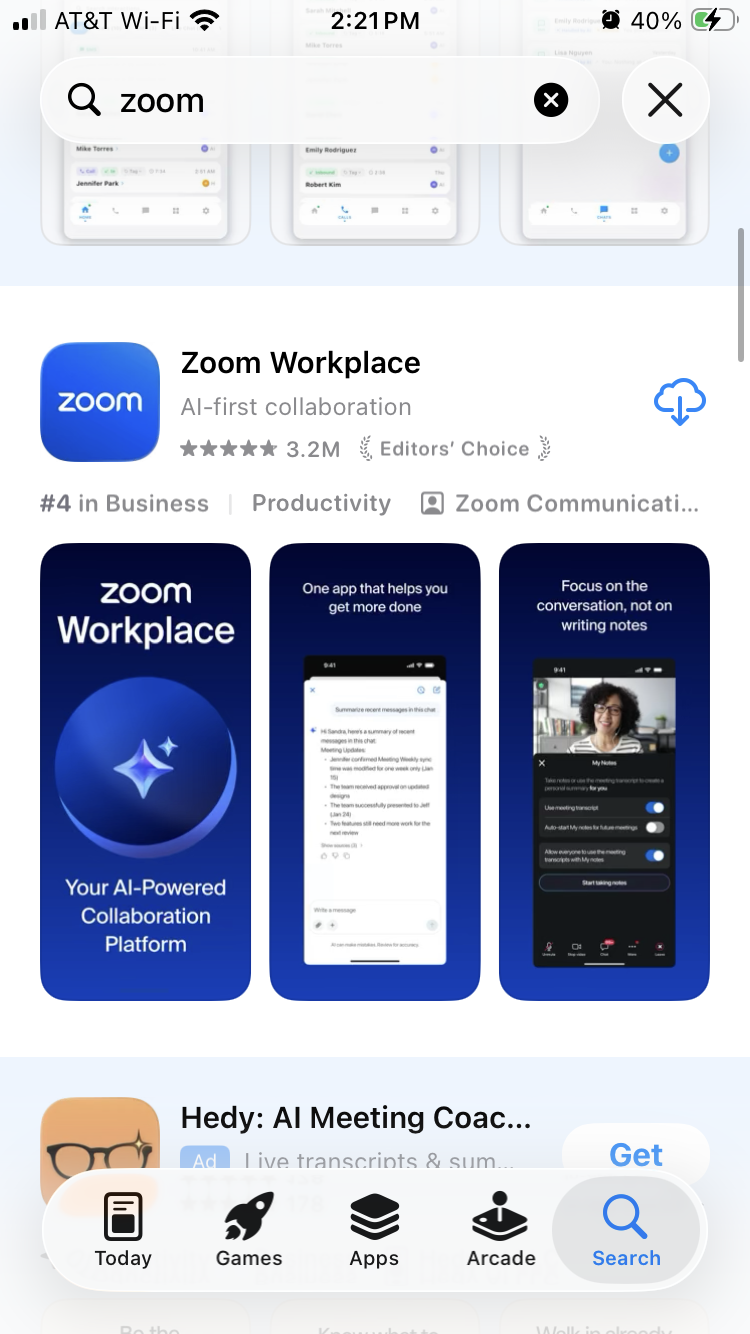
On an iPhone or iPad: Go to the Apple App Store and search for “Zoom Workplace.” Click “Get” to download and install the Zoom app.
On an Android phone or tablet: Go to the Google Play App Store and search for “Zoom Cloud Meetings.” Click “Install.”
On an Apple computer: On the Download Center website (https://zoom.us/download), click “Download” in the “Zoom Workplace for Mac” section. Click the blue Download button.

On a PC: On the Download Center website (https://zoom.us/download), click “Download” in the “Zoom Workplace for Windows” section. Click the appropriate download option for your computer.
After Zoom is downloaded, you must install it onto your computer.
If you have an Apple computer, like a MacBook: Double-click the file called Zoom.pkg, which is typically saved to your Downloads folder. The installer program opens and guides you through the process.
If you have a PC: Double-click the file called ZoomInstaller.exe file to install the program.

Double-click ZoomInstaller.exe to install Zoom on your PC.
JOIN A MEETING
After you install Zoom, there are a few different ways to join a Zoom meeting. You can click the link in your invitation email, go to the Zoom website and enter the meeting ID, or dial into the meeting on a phone.
Click the link in an invitation email: If you have an email invitation, click “Join Zoom Meeting” in that email. This takes you to the Zoom website.
Go to the Zoom website: Go to https://zoom.us/join, and enter the 9-digit meeting ID from your invitation email. If the meeting requires a password, that will be in your email, too.
When you are on the Zoom website, if you are asked if you want to open Zoom, click “Open zoom.us.” Zoom opens, showing you a preview of your camera image. Then click either “Join with Video” or “Join without Video.” If you use video, other people in the meeting will see you. If not, they will just see your name. Next, Zoom asks about audio. Click “Join with Computer Audio” so you can hear and be heard in the meeting.
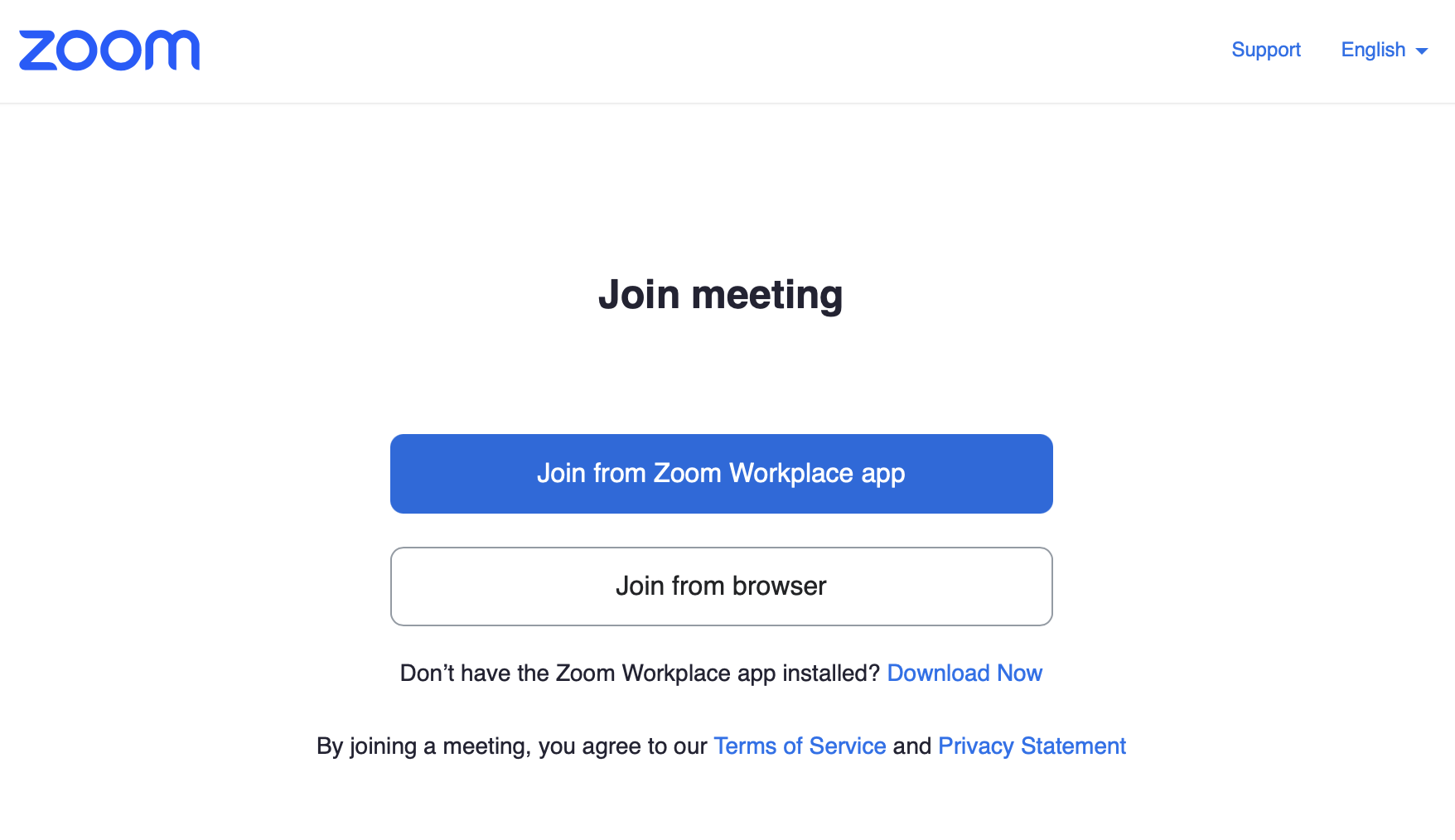
Join the meeting without downloading the program: If you did not download the Zoom software, simply click on the link in the invitation, click “Allow” in response to the question on the pop-up, Do you want to allow this website to open “zoom.us”? Then, the “Join from browser.”
Dial into the meeting on a phone: If you don’t have access to a computer, tablet, or smartphone, you can use a phone to dial into the meeting. The phone number to use will be in your invitation email, or you can find the number to use in the Zoom International Dial-in Numbers list (online here).
PARTICIPATE IN A MEETING
Once you’ve joined the meeting, you can see and hear other participants. Each participant is represented by a square that displays their face (if they’ve chosen to join with video) or just their name.
If you’re in a large meeting, make sure your microphone is muted. Your computer microphone is pretty sensitive, and if you’re unmuted, it can pick up a lot of background noise. The mute button, which is labeled “Audio” and looks like a microphone, is in the bottom left corner of the Zoom screen. If the microphone has a red line through it, you’re muted, and no one in the meeting can hear you.
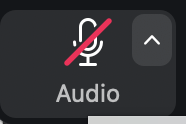
If the microphone has a red line through it, you are muted.
Click the button again to unmute yourself if you want to talk in the meeting.
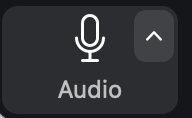
If the microphone has no red line through it, you can be heard in the meeting.
Only one person in the meeting can talk at a time. Zoom indicates who is speaking by highlighting their image with a yellow square.
There is also a chat feature in Zoom, where you can type messages to other participants. Participants can send messages to everyone in the meeting, or just certain participants. However, after the meeting, the host can view the transcript of all chats, so it’s not entirely private. If there is a message for you in the chat, a notification appears on the Chat button, which looks like a speech bubble. Click that button to open the chat window.
LEAVE A ZOOM MEETING
Click on the “End” button on the bottom right corner, then “Leave Meeting” to exit the Zoom meeting.
UPDATED Sept. 23, 2026